Got a 2GB video you need to send? HandBrake shrinks it to a quarter of that size or less, and your eyes won’t catch the difference. Free, open source, works on Windows, Mac, and Linux.
The app re-encodes video into modern formats (H.264 and H.265) that are far more efficient than older codecs, so you keep nearly the same quality at a much smaller size.
What it does best
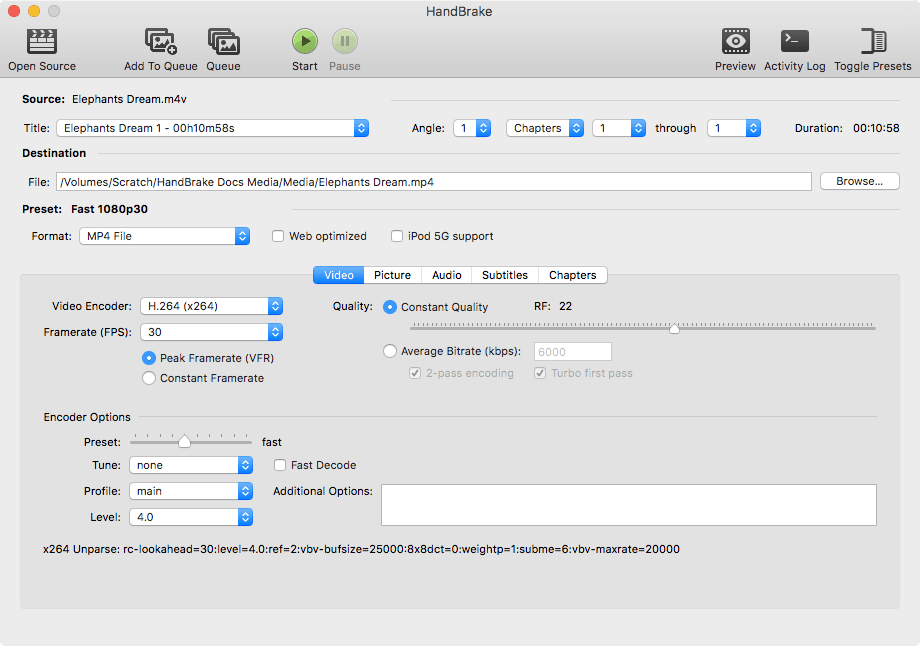
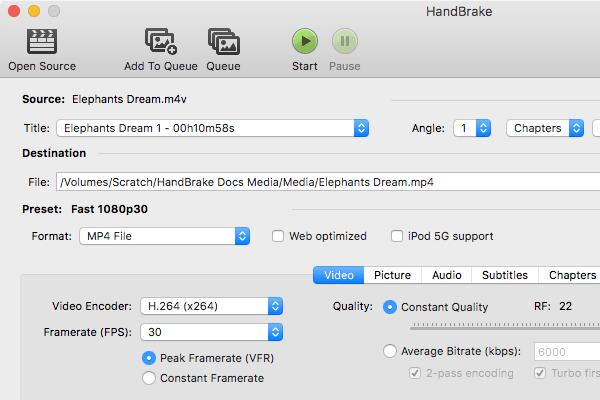
- Smart compression: adjust the quality slider (RF) and preview the expected file size before you start.
- Batch processing: queue dozens of videos and run them all in one go.
- Ready-made presets: a tuned preset for every target, phone, web, older devices.
- GPU acceleration: uses Nvidia NVENC or Intel QuickSync for faster exports.
Getting started
Open your video, pick a preset like “Fast 1080p30”, and set the RF value between 20 and 28 (higher means smaller file, slightly lower quality). Hit Start and wait.
FAQ
How is it different from LosslessCut?
LosslessCut trims parts of a video without re-encoding it. HandBrake re-encodes the whole video to shrink its size. Different jobs entirely.
Does it slow down my computer while converting?
It uses your CPU or GPU heavily during conversion, so your machine stays busy, but you can still work on other things at the same time.
How long does a one-hour video take?
Depends on your hardware, but with GPU acceleration it’s usually faster than the video’s own runtime.
Bottom line
If storage is filling up with video, or you need to send a file without wrecking its quality, this is the best free option out there.
Link : handbrake.fr