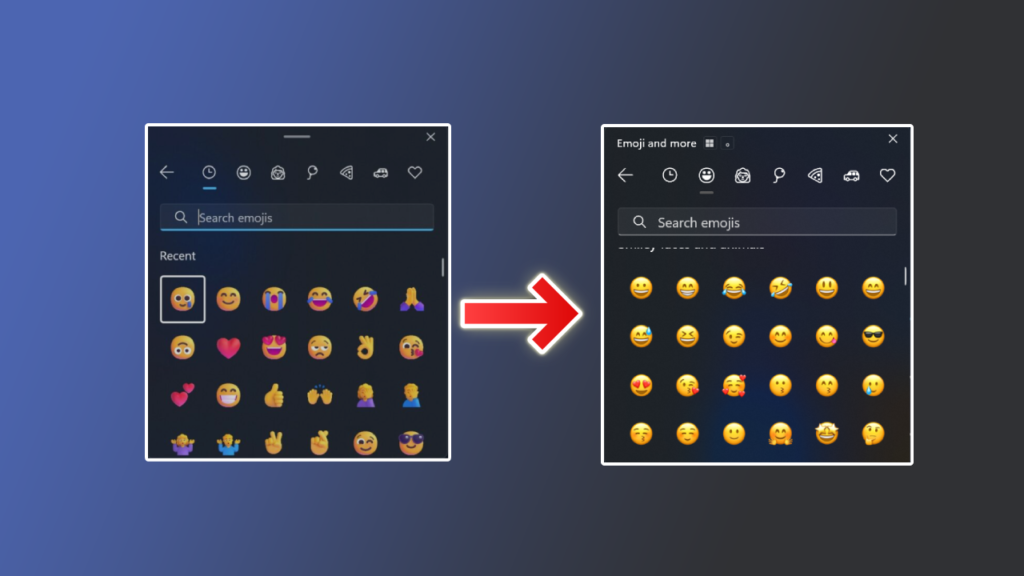
Windows 11 keeps bundling in more AI features – Copilot, smart suggestions, cloud-service integration – and that’s not for everyone. This article covers a script that strips these features out and brings back a simpler, lighter interface.
What does this script actually do?
It’s typically a PowerShell script that removes or disables Windows 11’s built-in AI components, such as Copilot and some of the smart suggestions in the Start menu and taskbar, without touching the system’s core functionality.
Why might you need it?
Many users prefer a lighter, simpler system without extra features they feel they don’t need – especially on older or lower-spec hardware. Others care about privacy and don’t want features that send usage data to cloud services just to power AI suggestions.
Key Things It Removes
- The Copilot button and icon from the taskbar.
- Smart suggestions in the Start menu and search.
- Certain experimental AI-related features in recent Windows updates.
- Options to re-enable these features later if you change your mind.
Pros
- A cleaner, simpler interface without elements you might see as unnecessary.
- Potentially lower resource usage on weaker machines.
- Better privacy by reducing connections to cloud-based AI services.
- Reversible in most cases without reinstalling the OS.
Cons and Risks
- Modifying system settings via external scripts always carries some risk, especially if the script isn’t kept up to date with the latest Windows updates.
- Future Microsoft updates may re-enable these features automatically, requiring you to run the script again.
- Always review the code of any script before running it with administrator privileges.
Safe Usage Steps
- Create a backup or a System Restore Point before making any changes.
- Download the script only from a trusted source – ideally an open-source GitHub repository where the code can be reviewed.
- Open PowerShell as Administrator.
- Run the script and follow the on-screen instructions.
- Restart your computer to make sure all changes take effect.
Important Tips
- Never run any system script with administrator privileges from a source you don’t fully trust.
- Keep your restore point for a reasonable amount of time before deleting it, in case something unexpected comes up.
- Periodically check whether new Windows updates have re-enabled the features you removed.
Alternatives to Achieve the Same Goal
If you’d rather not use an external script, Windows provides some built-in options to manually disable part of these features directly from Settings > Privacy, though they’re less comprehensive than a dedicated script. Tools like “O&O ShutUp10” offer a graphical interface instead of the command line for those who prefer that.
FAQ
Does removing AI features affect system stability?
Usually not, as long as the script only targets interface elements and add-on features without touching core system files. Caution is still always warranted.
Can I bring the features back later?
With most trustworthy scripts, yes – either through a dedicated rollback option or via the restore point you created beforehand.
Is this legal / does it violate Windows’ terms of use?
Modifying settings on your own personal device is entirely permitted – the script doesn’t hack or break any protection, it simply disables optional features exposed by the system’s own interface.
Conclusion
If you’re a Windows 11 user who prefers a simpler experience without built-in AI features, this type of script offers a quick and reversible solution. Just follow the basic precautions: back up first, and use a trusted source for the script.
Link: RemoveWindowsAI