FreeCut is a free video editor that runs entirely from your browser, with no need to download or install any heavy software on your device.
What is FreeCut?
It’s a web-based video editor that lets you trim and merge clips, add transitions, and adjust audio and basic effects directly from your browser window. It doesn’t require a complicated account setup or installing heavy software like Adobe Premiere or DaVinci Resolve, making it a fast option for simple to moderate editing tasks.
Why try it?
If you need quick video editing (trimming a clip, merging a few shots, adding simple text) and don’t want to install a heavy editing program that eats up storage and resources, or if you’re working from a device where you don’t have permission to install software, FreeCut offers a fast, practical solution.
Key Features
- Runs directly from the browser – no install, no updates to wait for.
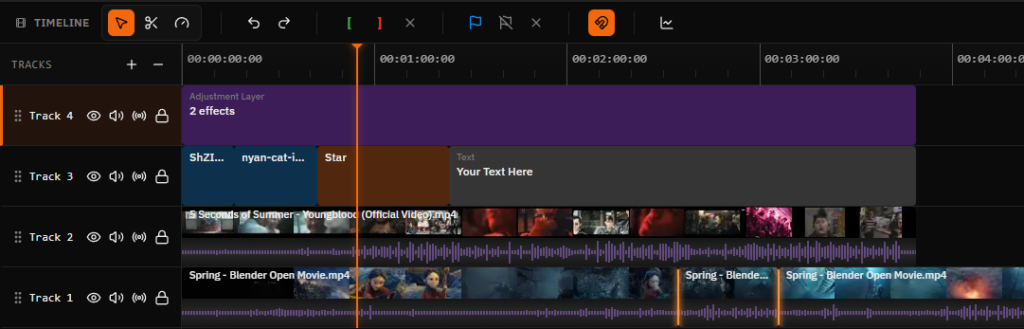
- Trim and merge clips with a simple drag-and-drop interface.
- Clear timeline for organizing multiple clips and audio layers.
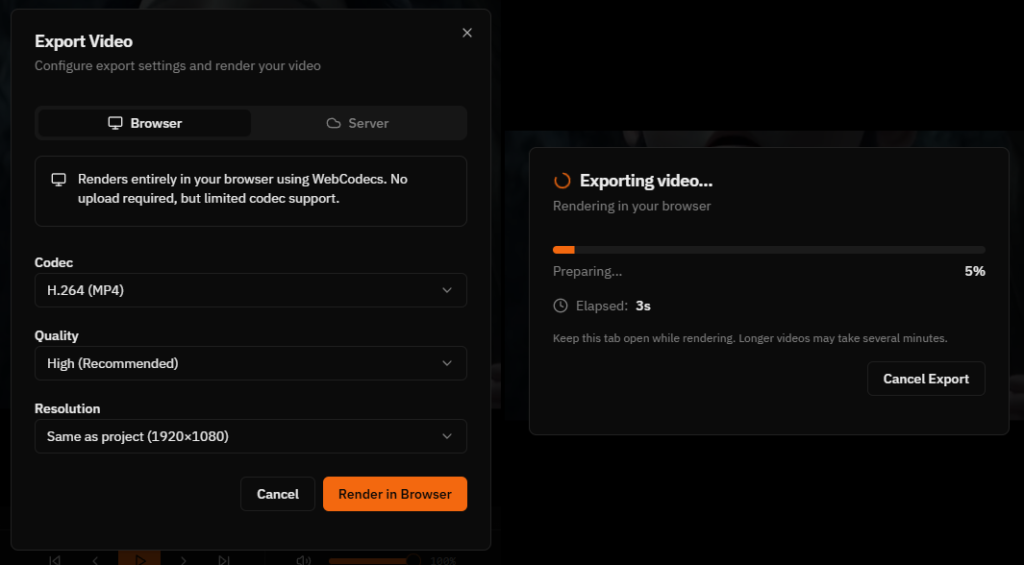
- Direct export of the final video in common formats.
- Free for basic editing use.
Pros
- Fast access – open your browser and start editing immediately with no install or update wait.
- Doesn’t consume local storage compared to heavy desktop editing software.
- Well suited for quick, simple tasks without the learning curve of a complex professional program.
- Works on any device with a modern browser, regardless of operating system.
Cons
- Doesn’t match programs like Adobe Premiere or DaVinci Resolve for advanced features (professional color grading, complex visual effects).
- Depends on a stable internet connection while editing and exporting.
- Very large or long video projects may process slower compared to locally-installed software that taps into your machine’s full power directly.
How to Use It
- Open the FreeCut site in your browser (nothing to install).
- Upload the video clips you want to edit into the project.
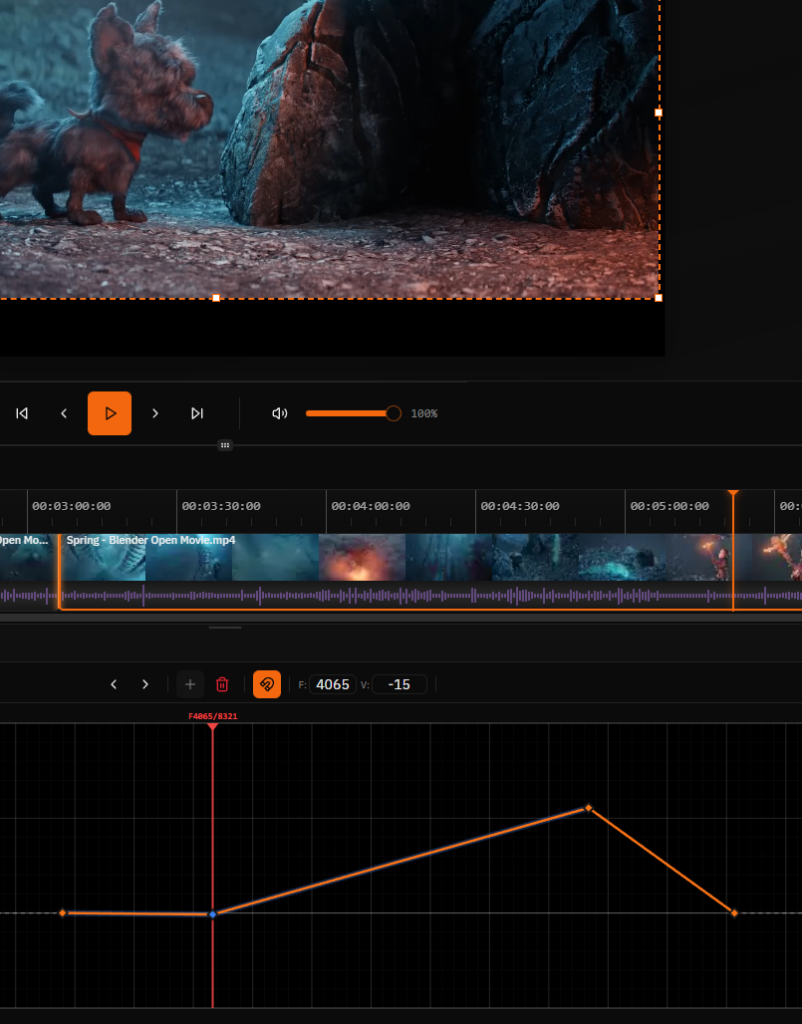
- Arrange the clips on the timeline, trimming or merging as needed.
- Add any transitions or simple text overlays you want from the available tools.
- Hit export, choose quality and format, then download the final video.
Tips for Best Use
- Use a stable internet connection while working on larger video projects to avoid losing progress.
- Always keep a copy of your original files before uploading, since some cloud editing tools don’t retain the raw file after the session ends.
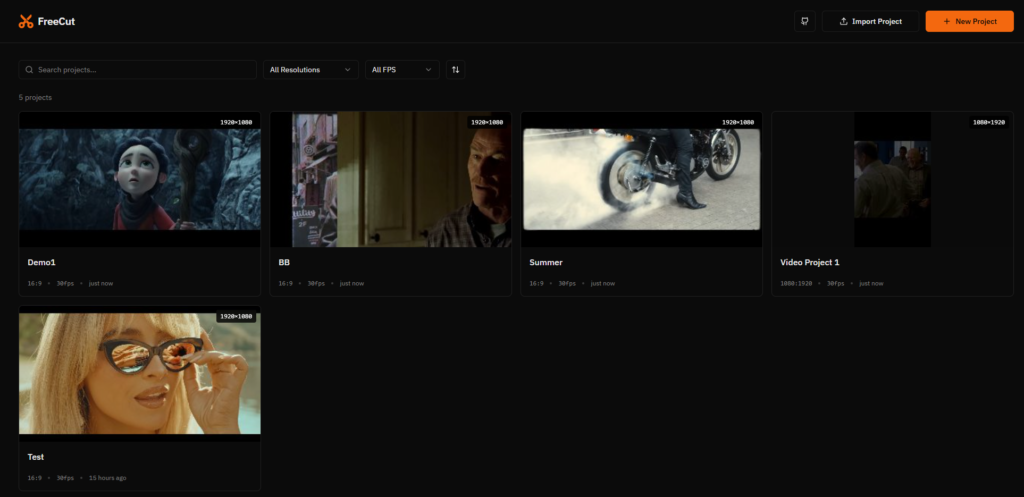
- Start with a small test project first to get familiar with the interface before working on something important.
Alternatives
“CapCut” on the web is a similarly popular option with more advanced ready-made effects, while “DaVinci Resolve” (free for local install) remains the stronger choice for anyone needing advanced professional editing, at the cost of the instant accessibility a web editor like FreeCut offers.
FAQ
Is my footage safe when uploaded to a web editing site?
It depends on the site’s privacy policy, which is always worth reviewing before uploading sensitive or private content.
Do I need a paid subscription to use FreeCut?
Core editing features are available for free, though some advanced features may be limited or require an upgrade depending on the site’s policy at the time.
Does it work on mobile?
Since it runs from the browser, you can open it on a mobile browser, but detailed editing usually works better on a larger screen like a computer.
Conclusion
FreeCut is a practical, fast option for simple to moderate editing tasks without installing heavy software. It’s not a replacement for professional editing tools on large projects, but it’s ideal for quick, everyday use.
Link: FreeCut