
Running multiple monitors? Windows doesn’t give you an easy way to control each one’s brightness separately. Twinkle Tray fixes that with a simple slider panel from the taskbar.
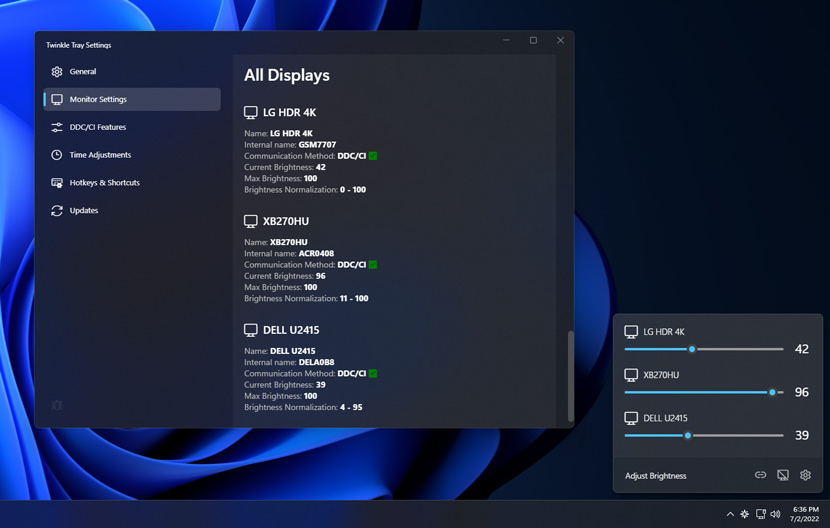
The app is free and open source. It adds a small icon next to the clock, and one click brings up separate brightness sliders for every monitor connected to your PC.
What it does best
- Per-monitor control: uses the DDC/CI protocol to control even regular external monitors, not just your laptop screen.
- Keyboard shortcuts: bind keys to raise and lower brightness without opening the app.
- Auto scheduling: dims brightness automatically at a set time of day.
- Very lightweight: runs in the background with no noticeable impact on performance.
Getting started
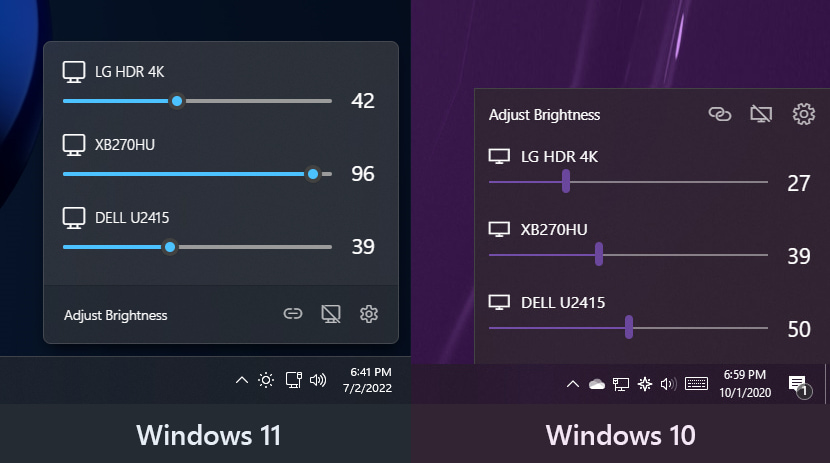
Grab it from the Microsoft Store or as a direct installer, run it, and click its taskbar icon. You’ll see a separate brightness slider for each connected monitor, drag one and see the difference instantly.
FAQ
Does it work with any monitor?
It needs DDC/CI support (most modern monitors have it), and you may need to enable it in the monitor’s own on-screen settings if it doesn’t show up automatically.
Does it slow down my PC?
No, it’s tiny and its resource impact is basically nothing.
Is there a Mac alternative?
Mac already has built-in multi-monitor brightness controls, so it doesn’t need an equivalent third-party tool.
Bottom line
If you run multiple monitors and hate fumbling with each screen’s physical buttons to adjust brightness, this solves it completely, for free, with zero effort.
Link : twinkletray.com